1. Overview
EC2 Auto Scaling automatically adjusts the number of EC2 instances in your application based on demand. It ensures you have the right number of instances running at all times — not too many (cost waste) and not too few (poor performance).
Core Concept Auto Scaling provides two key benefits: 1) Elasticity — automatically scale out (add instances) when demand increases and scale in (remove instances) when demand decreases. 2) High Availability — automatically replace unhealthy instances and maintain your desired instance count across AZs.
2. Auto Scaling Components
Component 1: Launch Template (or Launch Configuration)
Defines WHAT to launch. Contains the instance configuration:
- AMI ID
- Instance type
- Key pair
- Security Groups
- IAM Instance Profile (role)
- User Data (bootstrap script)
- EBS volume configuration
- Network settings
Launch Template vs Launch Configuration Launch Configuration = legacy, immutable, limited features. Launch Template = modern, versioned, supports mixed instance types, Spot, and advanced features. AWS recommends Launch Templates for all new setups. Launch Configurations cannot be edited — you must create a new one.
Component 2: Auto Scaling Group (ASG)
Defines WHERE and HOW MANY instances to run:
- Minimum Capacity: The minimum number of instances that must always be running. ASG will never scale below this.
- Desired Capacity: The target number of instances. ASG will try to maintain this count at all times.
- Maximum Capacity: The maximum number of instances allowed. ASG will never scale above this.
Example Configuration:

Minimum:  2  (always at least 2 running)
Desired:  4  (ASG targets 4 instances)
Maximum: 10  (never more than 10)

     Min        Desired         Max
      2 --------- 4 ----------- 10
      |           |              |
  scale in    current state   scale out
Component 3: Scaling Policies
Defines WHEN to scale. See section 2.4 for details.
3. Auto Scaling Group Key Features
Multi-AZ Deployment
- ASG distributes instances evenly across the configured AZs
- If one AZ goes down, ASG launches replacement instances in healthy AZs
- Best practice: use at least 2 AZs (ideally 3) for high availability
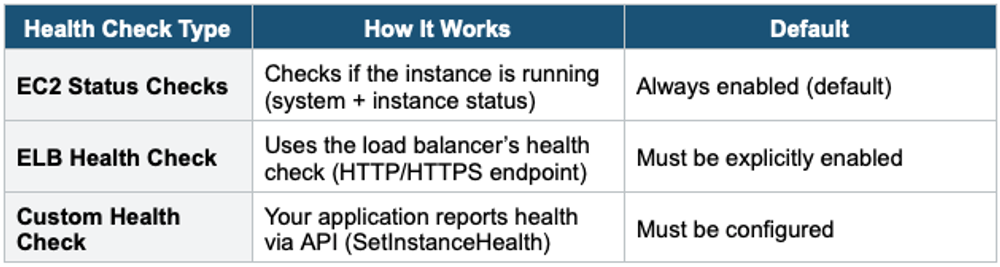
Health Checks
- ASG monitors instance health and automatically replaces unhealthy instances
Cooldown Period
- After a scaling activity, ASG waits for the cooldown period (default: 300 seconds / 5 minutes) before allowing another scaling action
- Prevents rapid fluctuations (scaling in and out repeatedly)
- During cooldown, ASG ignores additional alarms
Warm Pool
- A pool of pre-initialized instances that are stopped (or in a running/hibernated state)
- When ASG needs to scale out, it pulls from the warm pool instead of launching cold
- Reduces launch time significantly (instances are already initialized)
- You pay reduced costs for stopped instances (only EBS storage charges)
Instance Refresh
- Automatically replaces instances when you update the Launch Template
- Rolls out changes gradually (configurable percentage at a time)
- Supports a minimum healthy percentage to maintain availability during updates
- Use for: OS patching, AMI updates, configuration changes
4. Scaling Policies
1. Manual Scaling
- You manually change the desired capacity
- ASG adds or removes instances to match
- No automation — useful for planned events
2. Scheduled Scaling
- Scale based on a schedule (e.g., scale up at 8 AM, scale down at 6 PM)
- Uses cron-like expressions or specific dates/times
- Ideal for predictable traffic patterns
Example: Scale up for business hours. Min: 10, Desired: 10 at 08:00 UTC Mon-FriMin: 2, Desired: 2 at 18:00 UTC Mon-Fri
3. Dynamic Scaling — Target Tracking (Recommended)
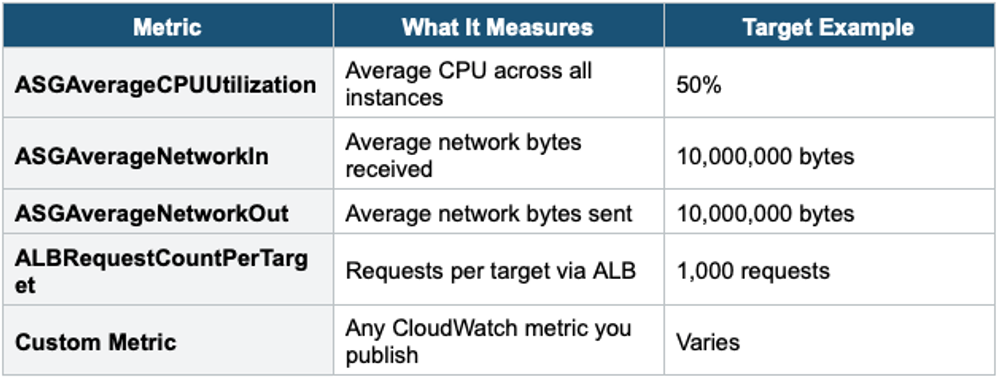
- You set a target metric, and ASG automatically adjusts to maintain it
- Simplest and most commonly used policy
- ASG creates and manages the CloudWatch alarms automatically
Example: "Keep average CPU utilization at 50%." If the CPU goes above 50%, ASG adds instances. If CPU drops below 50%, ASG removes instances.
Common Target Tracking Metrics
4. Dynamic Scaling — Step Scaling
- You define CloudWatch alarms and specify how many instances to add/remove at each step
- More granular control than Target Tracking
- Multiple steps: e.g., add 1 instance if CPU > 60%, add 3 instances if CPU > 80%
5. Dynamic Scaling — Simple Scaling (Legacy)
- Triggered by a single CloudWatch alarm
- Waits for the entire cooldown period before responding to additional alarms
- Less responsive than Step Scaling — not recommended for new setups
6. Predictive Scaling
- Uses machine learning to analyze historical traffic patterns
- Predicts future demand and pre-scales BEFORE traffic arrives
- Works well with cyclical/predictable workloads
- Can be combined with dynamic scaling for comprehensive coverage
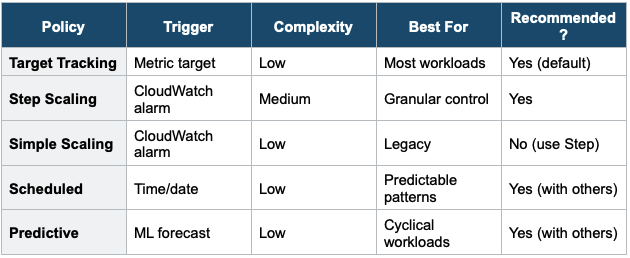
5. Scaling Policies Comparison
6. Scaling Termination Policy
When ASG needs to scale in (remove instances), it follows a termination policy to decide which instance to terminate:
- Default Policy:
- 1) Select the AZ with the most instances.
- 2) Among those, terminate the instance with the oldest launch configuration/template.
- 3) If tied, terminate the instance closest to the next billing hour.
Other Termination Policies
- OldestInstance: Terminate the oldest instance (useful when upgrading instance types)
- NewestInstance: Terminate the newest instance
- OldestLaunchConfiguration: Terminate instance with the oldest launch configuration
- OldestLaunchTemplate: Terminate instance with the oldest launch template version
- ClosestToNextInstanceHour: Terminate instance closest to the next billing hour (cost optimization)
- AllocationStrategy: Used with mixed instance types / Spot (terminate based on allocation strategy)
7. Lifecycle Hooks
- Allow you to perform custom actions when instances launch or terminate
- Instance enters a "Pending:Wait" state on launch or "Terminating:Wait" state on termination
- During the wait state, you can: install extra software, pull logs before termination, register with external systems, run health checks
- Default wait: 1 hour (configurable up to 48 hours)
- Integrates with EventBridge, SNS, and SQS for notifications
8. When to use
Use EC2 Auto Scaling when you need to automatically add or remove EC2 instances based on demand, health, or schedule.
Common scenarios:
- Handle traffic spikes — Automatically scale out when CPU, memory, or request count increases.
- Cost optimization — Scale in during low-traffic periods to avoid paying for idle instances.
- High availability — Replace unhealthy instances automatically.
- Predictable workloads — Schedule scaling actions for known traffic patterns (e.g., business hours, weekends).
- Maintain minimum capacity — Always keep a minimum number of instances running.
Exam Tip Auto Scaling questions: "Maintain CPU at 40%" = Target Tracking policy. "Scale up at 9 AM every weekday" = Scheduled Scaling. "ML-based prediction" = Predictive Scaling. "Replace instances gradually after AMI update" = Instance Refresh. Launch Template is always preferred over Launch Configuration. ASG + ALB = the most common HA architecture pattern. Cooldown prevents rapid scale oscillation.