1. What is IAM?
AWS Identity and Access Management (IAM) is a global service that enables you to securely control access to AWS resources. IAM lets you manage who (authentication) can do what (authorization) on which AWS resources.
Core Concept IAM is about two things: Authentication (proving who you are) and Authorization (what you are allowed to do). IAM is a global service — it is not Region-specific. IAM is free to use.
2. Root User
When you first create an AWS account, you begin with the root user. The root user has complete, unrestricted access to all resources in the account.
Root User Characteristics
- Created with the email address and password used to create the AWS account
- Has full access to ALL AWS services and resources — cannot be restricted by IAM policies
- Should NOT be used for everyday tasks
- Should have MFA enabled immediately
Tasks That ONLY the Root User Can Do
- Change account settings (account name, email, root password)
- Close the AWS account
- Change or cancel the AWS support plan
- Register as a seller in the Reserved Instance Marketplace
- Enable MFA on the S3 bucket delete (MFA Delete)
- Restore IAM user permissions (if accidentally removed)
- Configure an Amazon S3 bucket to enable MFA Delete
- View certain tax invoices
Important Warning Never use the root user for daily tasks. Never share root user credentials. Always enable MFA on the root user. Create an IAM admin user for day-to-day management instead.
3. IAM Users
An IAM user is an identity within your AWS account that represents a person or application that interacts with AWS.
Key Facts
- Each IAM user has a unique name within the account
- A new IAM user has NO permissions by default — explicit deny by default
- Users can authenticate via console password (for web access) and/or access keys (for CLI/SDK/API access)
- Each user can have a maximum of 2 access keys
- Limit: 5,000 IAM users per AWS account
IAM User Credentials

Exam Tip A new IAM user has NO permissions. This is the "implicit deny" principle. You must explicitly attach policies to grant access. The exam may ask: "A new developer joins the team and creates an IAM user. What can they access?" Answer: Nothing, until permissions are granted.
4. IAM Groups
An IAM group is a collection of IAM users. Groups let you specify permissions for multiple users at once, making it easier to manage permissions.
Key Facts
- Groups contain users only — you cannot nest groups (no groups within groups)
- A user can belong to multiple groups (up to 10)
- Groups cannot be used as a principal in a policy — they are not an identity, just an organizational tool
- Limit: 300 groups per account
- There is no default "all users" group — you must create one if needed
How Groups Work
- Attach policies to a group
- All users in that group inherit the group’s permissions
- When a user is removed from a group, they lose that group’s permissions
Example Group Structure
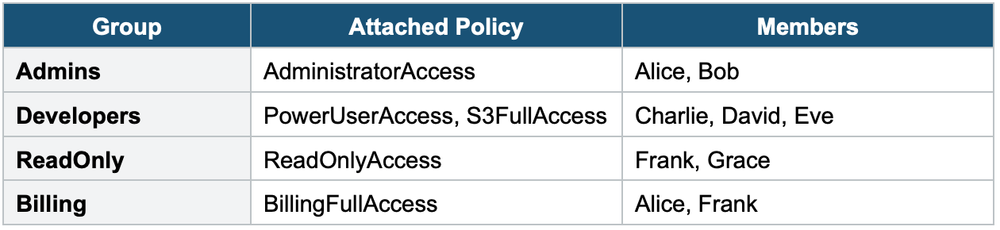
In this example, Alice is in both the Admins and Billing groups. She inherits permissions from both groups. Her effective permissions are the union of all attached policies.
5. IAM Policies
IAM policies are JSON documents that define permissions. They specify who can do what on which resources and under what conditions.
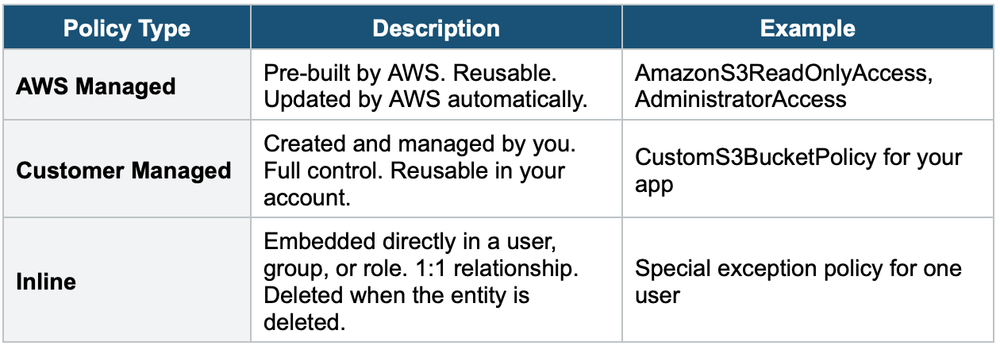
Policy Types
Policy JSON Structure
Every IAM policy has this structure:
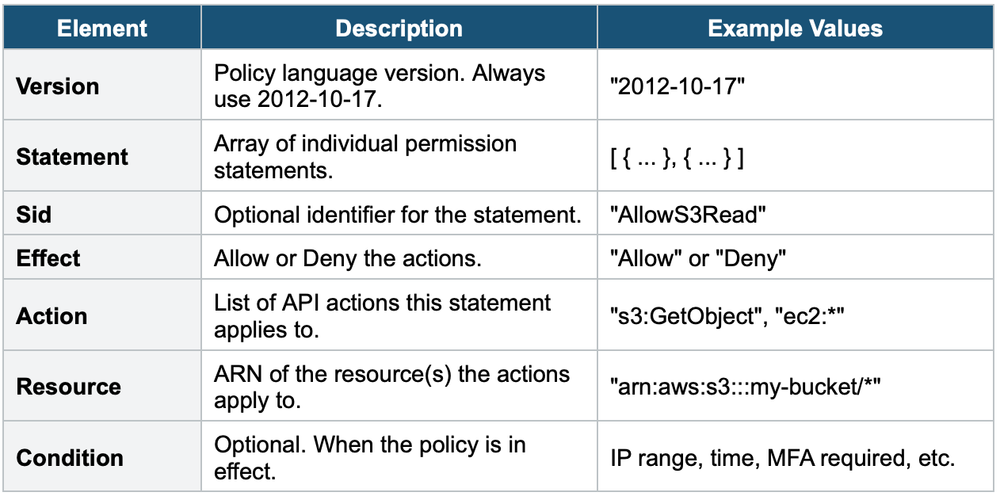
Policy Element Breakdown
Policy Evaluation Logic
When AWS evaluates policies, it follows this order:
- By default, all requests are implicitly denied.
- An explicit Allow overrides the implicit deny.
- An explicit Deny ALWAYS overrides any Allow.
Deny Always Wins If any policy (attached to the user, group, or role) contains an explicit Deny for an action, that action is denied — even if another policy explicitly Allows it. Deny always takes precedence.
Wildcard Usage
- "*" in Action: Means all actions. Example: "s3:*" = all S3 actions.
- "*" in Resource: Means all resources. Example: "*" = all resources in the account.
- "Action": "*" + "Resource": "*" = Full admin access (same as AdministratorAccess policy).
6. When to use
Use these to define who can access your AWS account and what they're allowed to do.
Key exam triggers:
- "permissions"
- "access control"
- "Who can do what?"
- "least privilege"
- "policy document"
- "group permissions"
Exam Tip The exam heavily tests policy evaluation. Remember: Implicit Deny → Explicit Allow → Explicit Deny wins. If a question shows a user with multiple policies and asks "What is the result?", check for any Deny statements first. Deny always wins.